Embarking on the journey of creating a paperless digital home office opens up a world of possibilities for increased efficiency and organization. From setting up a clutter-free workspace to digitizing documents seamlessly, this guide covers all you need to know to revolutionize your work environment.
Setting Up a Digital Workspace
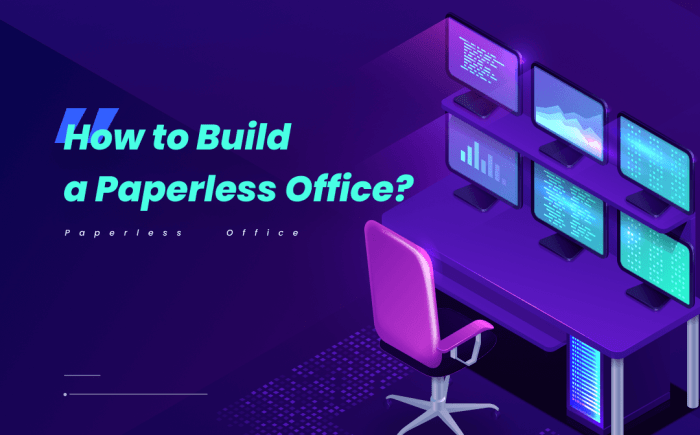
Setting up a digital workspace in your home office is crucial for efficiency and productivity. This involves having the right hardware, software applications, and organization methods to create a clutter-free environment.
Essential Hardware for a Paperless Home Office
- Computer or Laptop: Invest in a reliable computer or laptop with enough storage capacity to store digital files.
- Scanner: A high-quality scanner will be essential for converting physical documents into digital format.
- External Hard Drive or Cloud Storage: Back up your digital files securely using an external hard drive or cloud storage services.
- Multi-Functional Printer: Opt for a printer that can also scan and copy documents to reduce the need for physical paperwork.
Best Software Applications for Organizing Digital Files
- Document Management Systems: Consider using software like Evernote, OneNote, or Google Drive to organize and store digital documents efficiently.
- File Naming Conventions: Establish a consistent naming system for your files to make them easy to search and retrieve.
- Cloud-Based Apps: Utilize cloud-based applications like Dropbox or Microsoft OneDrive for seamless access to your files from anywhere.
Creating a Clutter-Free Digital Desktop
Having a clutter-free digital desktop is essential for a distraction-free work environment. Follow these tips to optimize your digital workspace:
- Organize Files into Folders: Create specific folders for different categories of files to keep your desktop tidy.
- Use Desktop Wallpaper Wisely: Choose a clean and simple desktop wallpaper to minimize visual distractions.
- Limit Shortcut Icons: Only keep essential shortcut icons on your desktop to avoid overcrowding.
Digitizing Documents
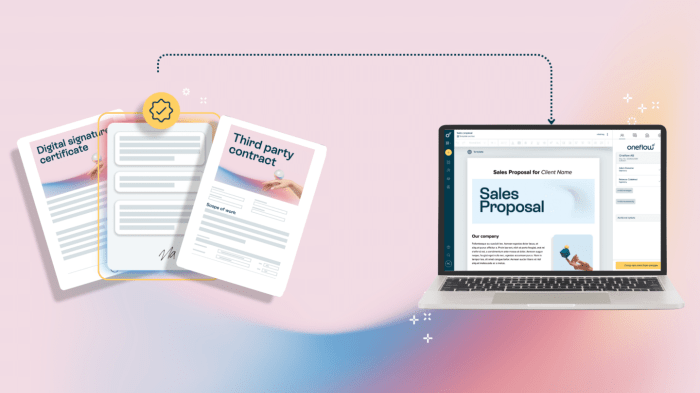
When transitioning to a paperless digital home office, one of the crucial steps is digitizing your physical documents. By converting paper files into digital format, you can easily access, search, and manage your documents more efficiently.
Scanning and Digitizing Methods
- Invest in a reliable scanner: Purchase a high-quality scanner that offers features like automatic document feeders and double-sided scanning for faster and easier digitization.
- Use scanning apps: Utilize mobile scanning apps that allow you to capture documents using your smartphone camera. These apps often have built-in features for image enhancement and document organization.
- Consider outsourcing: If you have a large volume of documents to digitize, you may opt to outsource the task to professional scanning services for quick and accurate results.
Organizing Digital Documents
Once you have digitized your documents, it's essential to organize them effectively to ensure easy retrieval and management.
- Create a folder structure: Establish a logical folder structure on your computer or cloud storage that mirrors your physical filing system for seamless organization.
- Use descriptive file names: Give your digital files clear and descriptive names to quickly identify their contents without having to open them.
- Implement tags or labels: Consider using tags or labels to categorize and tag your documents for easier searching and sorting.
Importance of Cloud Storage
Cloud storage plays a vital role in backing up and accessing your digital documents from anywhere at any time.
- Automatic backups: Cloud storage services offer automatic backup features that ensure your documents are safe and secure in case of hardware failure or data loss.
- Remote access: With cloud storage, you can access your documents from any device with an internet connection, allowing for greater flexibility and collaboration.
- Scalability and affordability: Cloud storage services often provide scalable storage options at affordable prices, making it a cost-effective solution for storing and managing your digital documents.
Implementing Digital Note-Taking
Transitioning to digital note-taking can greatly enhance your productivity and organization. Here, we will explore various note-taking apps, syncing methods, and organization techniques to help you create a seamless paperless note-taking system.
Comparing Note-Taking Apps
When choosing a note-taking app, consider factors such as user interface, features, compatibility with different devices, and syncing capabilities. Here are a few popular options to consider:
- Evernote: A versatile app with robust organization features and cross-platform syncing.
- OneNote: Microsoft's note-taking app that integrates well with other Microsoft tools and offers collaborative features.
- Google Keep: Simple and user-friendly, ideal for quick notes and lists, with seamless integration with Google services.
Syncing Digital Notes
Syncing your digital notes across various devices ensures you have access to them whenever and wherever you need. To sync your notes seamlessly, consider using cloud storage services like Google Drive, Dropbox, or iCloud. Most note-taking apps offer built-in syncing features that automatically update your notes across all your devices.
Organizing and Categorizing Notes
Efficient organization is key to managing your digital notes effectively. Create folders or notebooks within your note-taking app to categorize your notes based on projects, topics, or priorities. Utilize tags or labels to further classify your notes and make them easier to search and retrieve.
Enhancing Communication
Setting up a virtual communication hub in a paperless home office is crucial for remote work efficiency. Digital communication tools such as email, messaging apps, and video conferencing play a vital role in keeping the team connected and productive. Here are some tips to maintain effective communication in a paperless home office environment:
Setting Up a Virtual Communication Hub
To set up a virtual communication hub, choose a reliable platform that offers a seamless experience for all team members. Ensure that the platform supports features like chat, video calls, file sharing, and project management tools. Create dedicated channels for different projects or teams to streamline communication and avoid clutter.
Benefits of Digital Communication Tools
Use email for formal communication, sharing important documents, and setting deadlines. Organize emails into folders to stay organized and easily retrieve information.
Messaging Apps
Instant messaging apps like Slack or Microsoft Teams facilitate quick discussions, collaboration, and sharing of updates in real-time.
Video Conferencing
Conducting virtual meetings through platforms like Zoom or Google Meet allows for face-to-face interactions, improving team engagement and fostering a sense of connection.
Tips for Effective Communication
Set clear communication guidelines
Establish protocols for responding to messages, scheduling meetings, and sharing updates to ensure everyone is on the same page.
Use a project management tool
Implement tools like Trello or Asana to assign tasks, track progress, and communicate project updates in a centralized platform.
Encourage regular check-ins
Schedule weekly team meetings or daily stand-ups to discuss progress, address challenges, and maintain team cohesion.
Provide feedback constructively
Offer feedback in a positive and constructive manner to promote continuous improvement and a supportive work environment.
Closure
In conclusion, transitioning to a paperless digital home office not only streamlines your workflow but also reduces environmental impact. Embrace the digital age and experience the benefits firsthand by implementing the strategies discussed in this guide.
Detailed FAQs
How can I ensure the security of my digital documents?
You can enhance document security by using encryption tools, setting up secure cloud storage, and regularly updating your antivirus software.
Is it possible to access my digital notes offline?
Yes, many note-taking apps offer offline access by enabling you to sync notes for offline use. Make sure to check the settings of your chosen app.
What is the best way to back up my digital files?
Utilizing cloud storage services like Google Drive or Dropbox is a reliable method for backing up your files securely and ensuring accessibility from anywhere.




![Top Must-Have Smart Home IoT Devices [2024 Curated]](https://digital.bantenraya.com/wp-content/uploads/2025/10/aee64388c1cfecaae116a4d593f27dfa-120x86.jpg)